What’s new
Knowledge Base
Our knowledge base, the online site where we house all of our product support articles, has a new look and a new URL: help.torch.io.
The old help site at https://support.geteverwise.io has now been retired, and all former article URLs have been updated. Reach out to help[at]torch.io if you have any questions or need help finding something specific.
Changes and enhancements
Improvements to the Admin views
We are making some improvements to the Admin views in the Program and Cohort tabs over the coming weeks: to be easier to navigate, to add new information, and to be more consistent across different Program types. We’ll continue to share more updates in future releases.
Visit the August 20, 2022 Release Notes for the improvements that went live on August 20.
This week, you’ll see a couple of changes:
- New “Matching” tab
- The “Manage” tab has been renamed “Overview”
New Matching tab
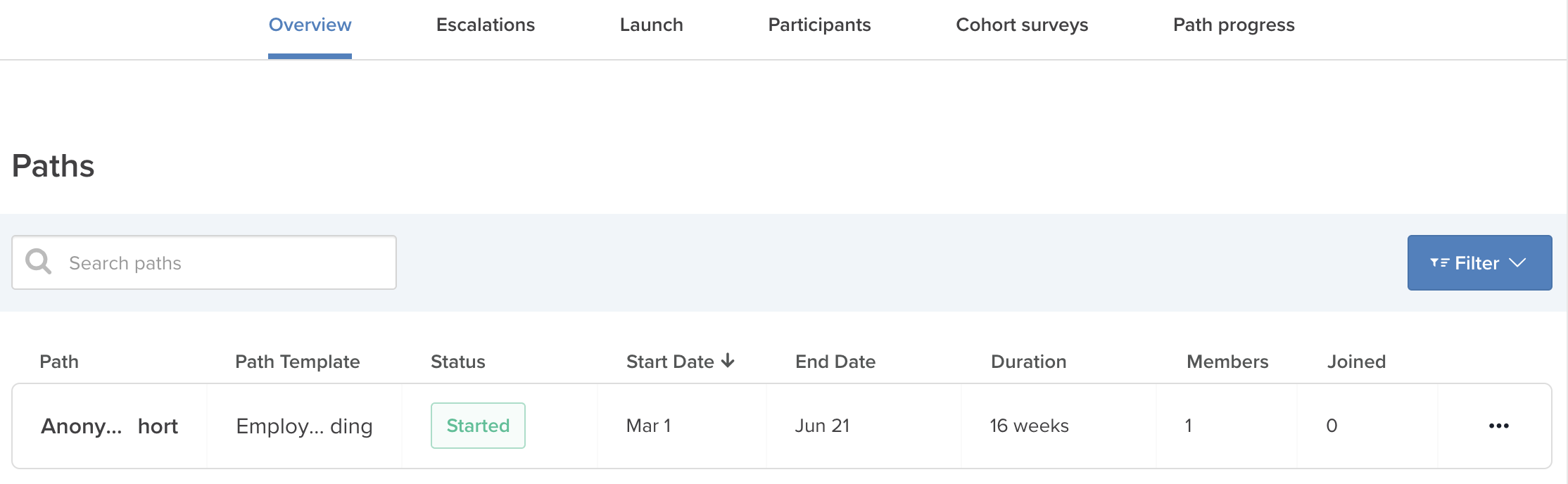
If your program involves matching (e.g., Mentoring or Coaching Programs), you will now see a separate tab in your Cohort with all information and actions related to matching. This information previously was displayed on the Manage tab.
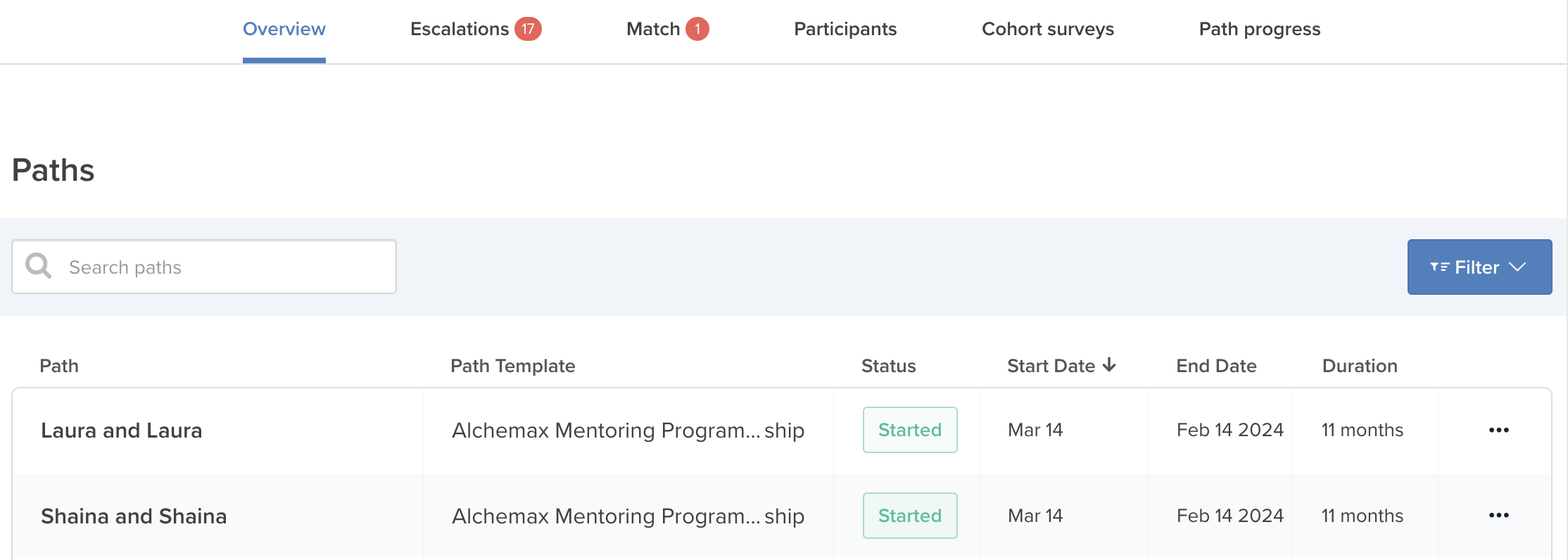
If you have matches ready for approval, on the Matching tab you’ll see the number of matches that are ready for your action.
Manage tab: Now called Overview
We’ve renamed the Admin’s Manage tab within a Cohort to Overview. This update, along with displaying the matching information in its own tab, is the only change made to this information; everything else has remained consistent.
Pause and resume a path
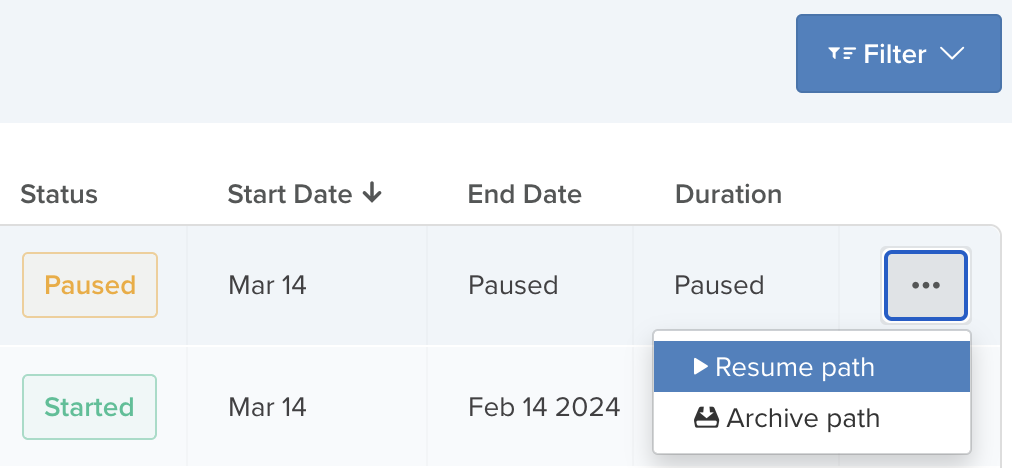
Admins are now able to pause and resume a path. To pause Managed Coaching and Managed Mentoring paths, please reach out to your Customer Success Manager.
What happens when a path is paused
At the time a path is paused:
- Participants are notified the path has been paused via email and an in-app notification. The content of the notifications is: “
has been paused. Please reach out to your program admin if you have any questions.”
-
The path card on the Home page will update to a paused state.
-
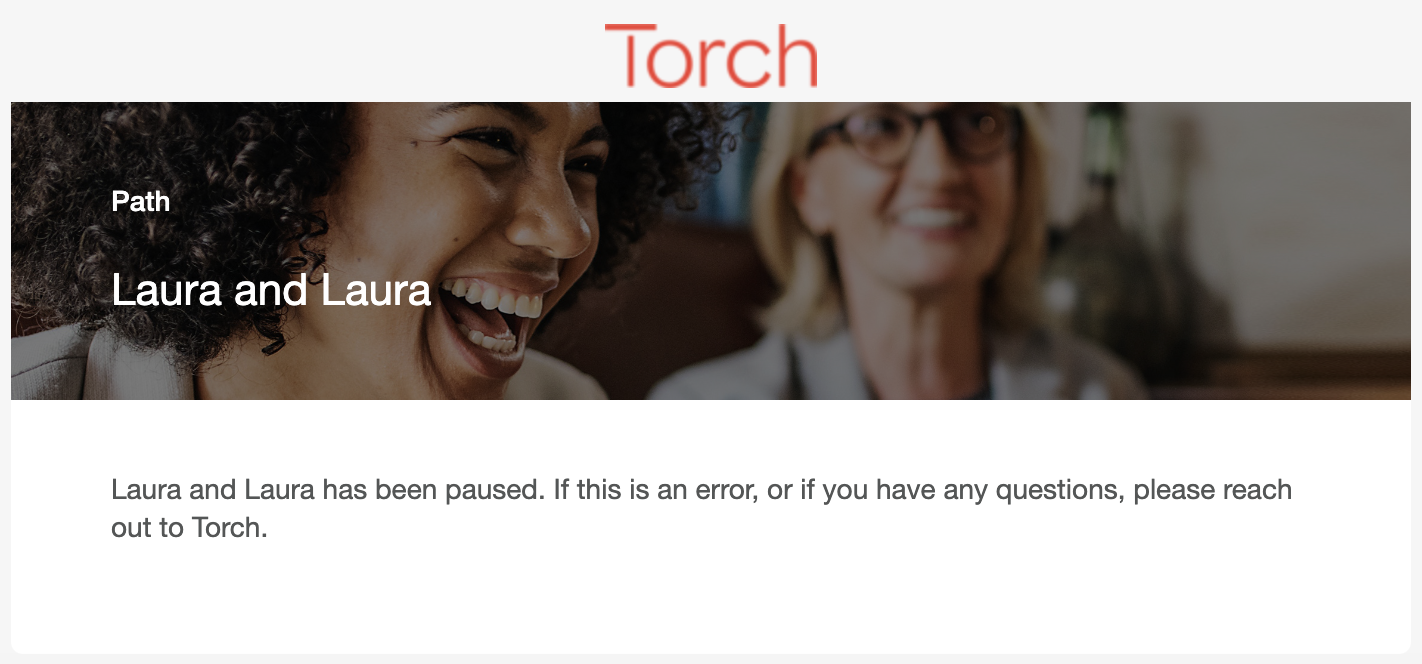
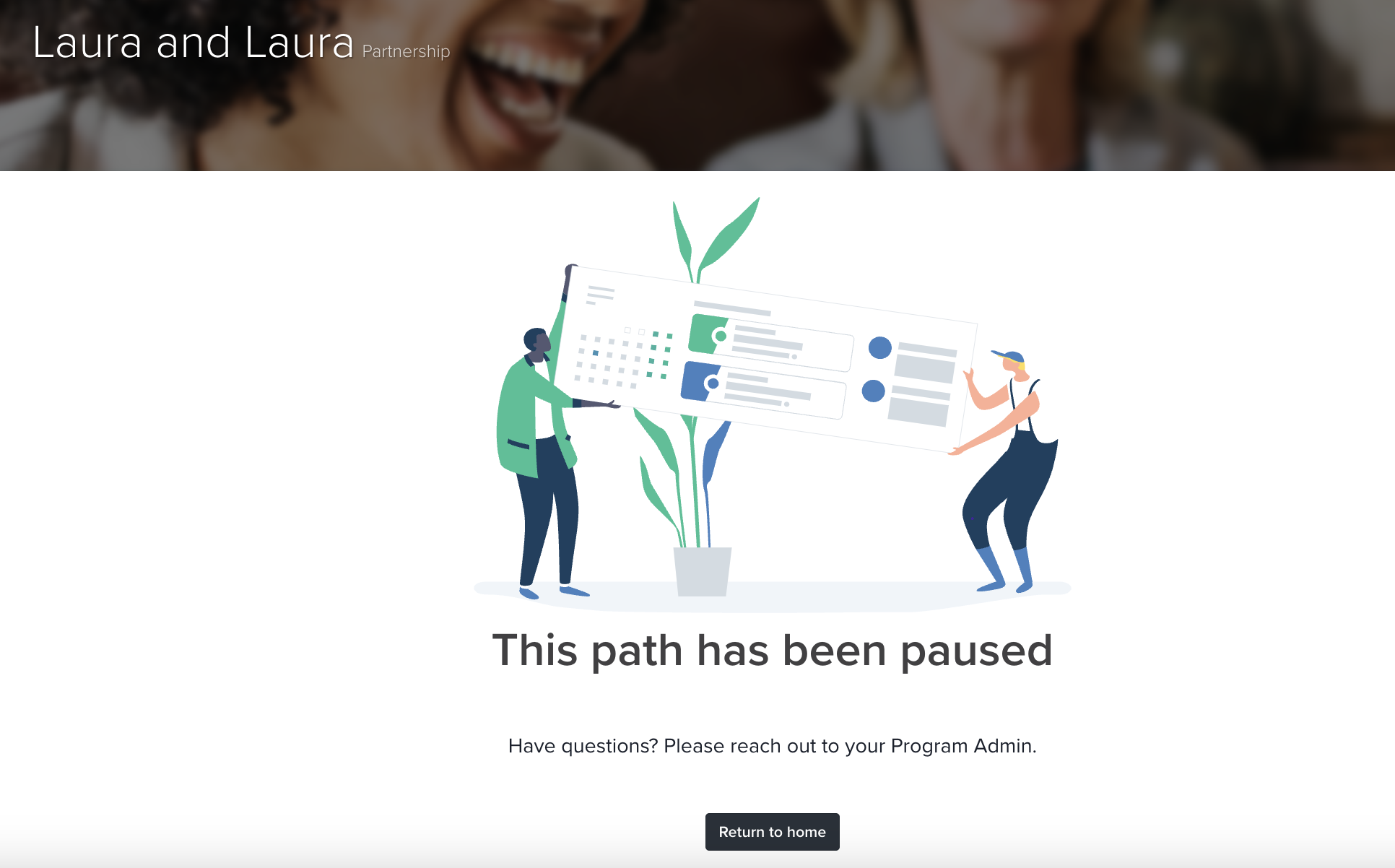
Clicking into the path via links or the Home page will show a path paused message. Users will not be able to interact with the path while it is paused.
-
No further notifications will be sent out until the path is resumed.
How to pause a path
To pause a path:
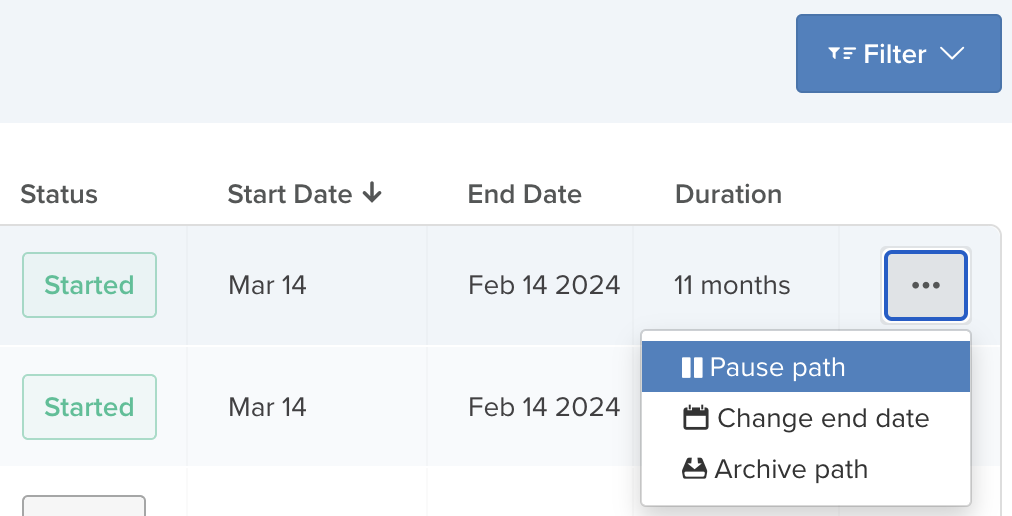
- Navigate to the Overview tab of a Cohort.
- In the paths table, find the path you would like to pause. Select the menu icon at the end of the row.
- Choose “Pause path” from the menu and confirm.
Why might you want to pause a path?
A path should be paused when it is known that participants will not make progress for an extended period of time, and the expectation is that they should not “lose” that time in the program. For example, you may want to pause a particular mentoring partnership while one of the participants is out on parental leave. Once that participant returns and is ready to pick up where they left off, you can resume the path with future dates updated accordingly.
What happens when a path is resumed
At the time a path is resumed:
- Participants are notified the path has resumed via email and an in-app notification. The content of the notifications is: “
has resumed. If this is an error, or if you have any questions, please reach out to Torch.” - The path card on the Home page will update to its previous state.
- Clicking into the path via links or the Home page will show the path.
- Any section or resource dates that would occur in the future at the time of pausing the path will be increased by the duration of the pause.
- Scheduled notifications will be sent out based on the updated dates.
How to resume a path
To resume a path:
- Navigate to the Overview tab of a Cohort.
- In the paths table, find the path you would like to resume. Select the menu icon at the end of the row.
- Select Resume path from the menu and confirm.