
If a user should no longer have access to the Torch platform, follow these steps to deactivate their user account.
| NOTE: When you deactivate an account, the user will no longer be able to log in to the Torch platform, receive emails from the platform, or view their past partnerships or programs. |

From the left-hand navigation, click Users.
| TORCH TIP: You can also deactivate a user from the User Profile panel. To do so, click a user’s name from anywhere in the platform to open the User Profile panel. Click the ellipsis (...) in the top-right corner, then click Deactivate. Click Deactivate user to confirm. |

Type the user’s name into the search bar. Or, click Filter to narrow down the Users list by program, cohort, invited date, or last active date, then click Apply.
 To deactivate one user, click the ellipsis (…) and the end of the user’s row, then click Deactivate.

Click Deactivate user to confirm.
To deactivate more than one user at a time, check the box next to the names of the users you want to deactivate, then click Deactivate at the top of the Users table.
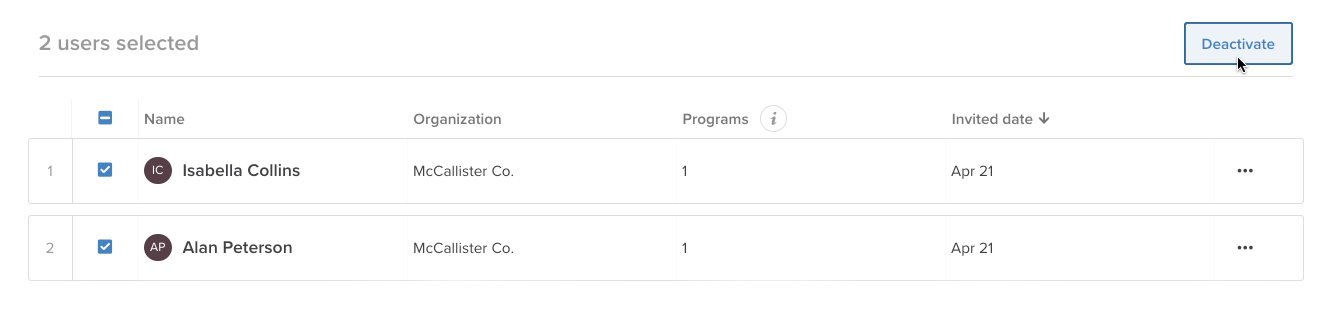
Click Deactivate users to confirm.
| NOTE: If you need to reactivate a user, submit a support request. |